
In some cases, customers may report that images in emails sent from your site are hidden, or that the email displays a warning such as “This message appears suspicious” in Gmail, Outlook, or other email clients.
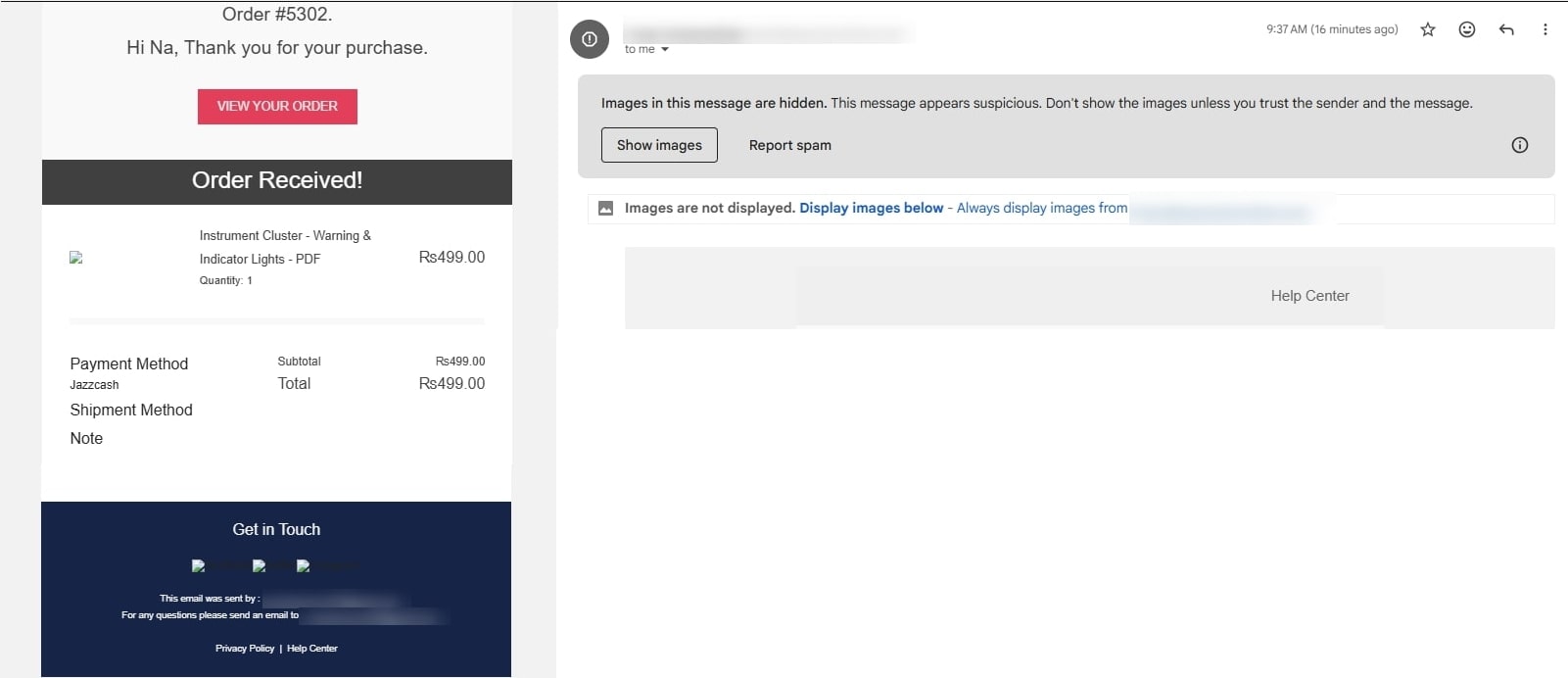
This article provides an overview of the common scenarios you may encounter, as outlined below.
Case 1: Images Require User Action to Display
Images are present in the email but are not displayed automatically. The recipient may see a notice such as: “Display now”; “Click here to display images”; “Display images below”
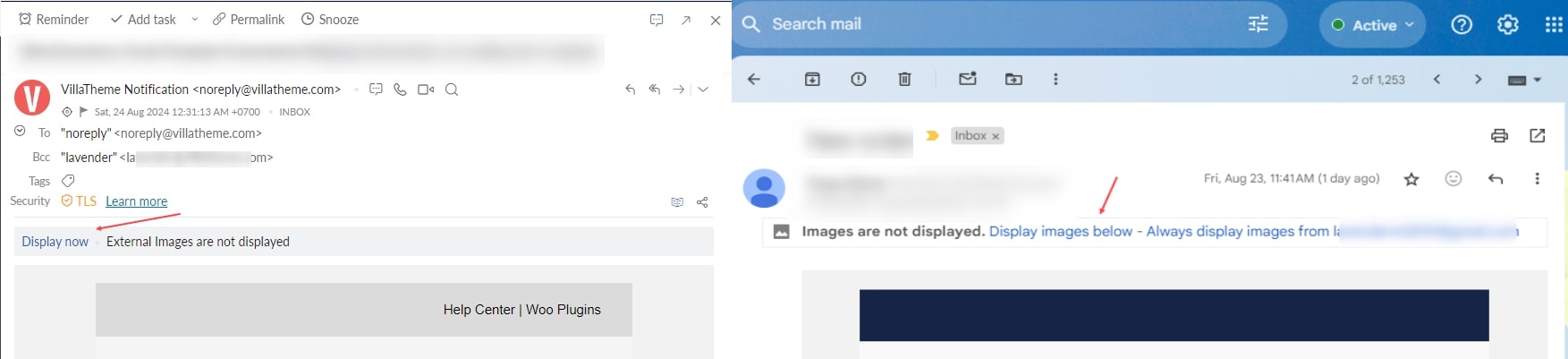
Once the recipient allows images, they appear correctly.
This behavior is common. It is a normal security feature and does not necessarily indicate an error.
You may consider the following solution: Instruct your email recipients to click the “View/Display Images” option within their email client to display the images
Case 2: The Mail Server Does Not Support the Image Format
In this case, images do not appear at all, even after the recipient attempts to allow or display them.
Why This Happens
Some email services do not support certain image formats within emails. A common example is SVG, which is often blocked or ignored due to security and compatibility concerns.
Different email providers support different image formats, and unsupported formats may simply not render.
Suggested Actions
You may want to:
-
- Review the documentation of the email service being used
- Identify which image formats are supported
- Convert unsupported image formats to more widely supported ones
The supported formats commonly include, but are not limited to, PNG, JPG, JPEG
Replacing unsupported formats with supported ones often resolves the issue.
Case 3: Images Blocked Due to Email Trust or Authentication Factors
When an email client marks a message as suspicious or blocks images, it means the message failed one or more security or trust checks.
To protect users from phishing, malware, and spoofed emails, modern email providers:
-
- Analyze the sending domain
- Verify sender authentication
- Check whether images and links come from trusted sources
- Evaluate how the email was sent
If any of these checks fail or are incomplete, images may be blocked by default and a warning is shown to the recipient.
Common Causes
Modern email providers apply strict security checks to protect users from phishing and spoofing. If an email does not meet their trust requirements, external content such as images may be blocked automatically.
The most common reasons include:
1. Missing Email Authentication (SPF, DKIM, DMARC)
Email authentication proves that your email was genuinely sent from your domain.
The three key mechanisms are:
-
- SPF (Sender Policy Framework): Specifies which mail servers are allowed to send emails on behalf of your domain.
- DKIM (DomainKeys Identified Mail): Adds a cryptographic signature to each email to verify its integrity.
- DMARC: Tells receiving servers how to handle emails that fail SPF or DKIM checks.
If any of these records are missing, incomplete, or misconfigured, email providers may treat the email as unverified and block images.
2. Sender Email Address Does Not Match the Website Domain
A common configuration issue is using a sender email that does not belong to the website’s domain.
Example:
-
- Website: mystore.com
- Sender email: [email protected]
This mismatch lowers trust significantly because the email appears to be sent “on behalf of” a different domain.
3. Images Loaded from Unsecured or Untrusted Sources
Email clients are cautious about loading external images because images can be used to track users or deliver malicious content.
Problems occur when:
-
- Images are loaded over HTTP instead of HTTPS
- Images are hosted on a different or unknown domain
- Images are blocked by firewall or permission rules
4. Server or Hosting Limitations
Some hosting providers:
-
- Restrict outbound email
- Use shared IPs with poor reputation
- Do not automatically configure DKIM or SPF
This can negatively impact email trust even if your setup is correct.
Suggested Ways to Improve Email Trust
Step 1: Configure SPF, DKIM, and DMARC Records
-
- Add the required DNS records for your domain based on your email or SMTP provider. These records verify that your emails are legitimately sent from your domain.
- This is the most important step to prevent image blocking and warning messages.
Step 2: Send Emails from Your Own Domain
-
- Use an email address such as:
- Avoid using free email services like Gmail or Yahoo as the sender.
Step 3: Ensure All Images Use HTTPS
Check that all images in your emails:
-
- Use https://
- Are accessible publicly
- Are hosted on a trusted source
Step 4: Use an SMTP Service
We strongly recommend sending emails through an authenticated SMTP service instead of the default WordPress mail function. You can connect using an SMTP plugin such as WP Mail SMTP or FluentSMTP.
Step 5: Test Email Delivery
After completing the configuration:
-
- Send test emails to Gmail, Outlook, and Yahoo
- Confirm that images load automatically
- Ensure no security warnings are displayed
The above suggestions may help reduce warnings and allow images to display more consistently across email clients.
Hidden images and security warnings in emails are caused by email trust and authentication issues. Proper domain authentication, secure image hosting, and SMTP configuration will resolve the issue in most cases.